Setup Assistant
Setup Assistant provides Administrators with a centralized list of tasks for onboarding organizations, clouds, or features within the Salesforce Platform. It provides a prescriptive and detailed guide for learning, configuring, and importing data which can take hours to days. https://www.lightningdesignsystem.com/components/setup-assistant/
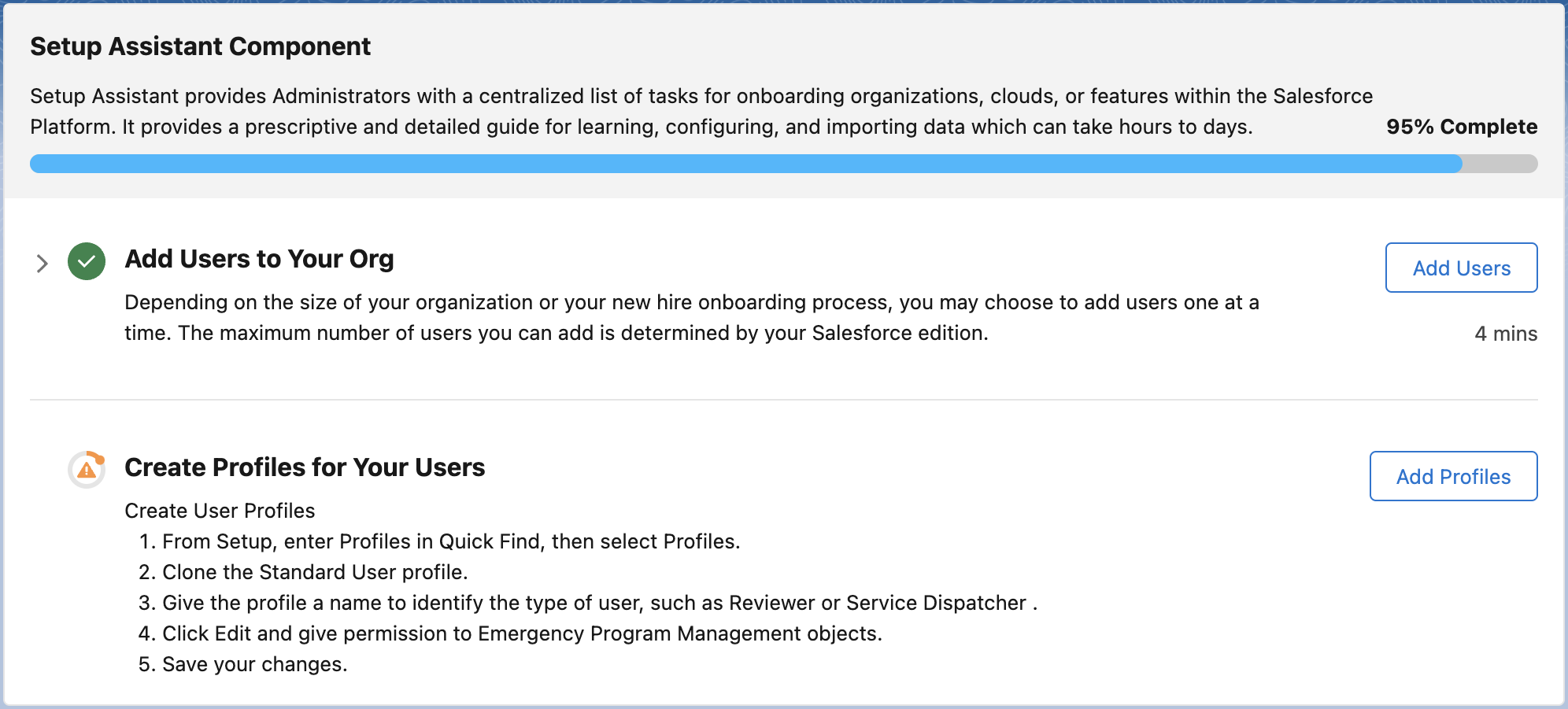
Usage
Simply add to your html markup:
<div class="slds-container_x-large slds-container_center slds-box slds-p-around_none slds-theme_default">
    <c-setup-assistant
            title="Setup Assistant Component"
            description="Description"
            progress-label="\{0} Complete"
            progress="95"
    >
        <div slot="description">
            Setup Assistant provides Administrators with a centralized list of tasks for onboarding organizations,
            clouds, or features within the Salesforce Platform. It provides a prescriptive and detailed guide for
            learning, configuring, and importing data which can take hours to days.
        </div>

        <c-setup-assistant-step
                title="Add Users to Your Org"
                progress="100"
                is-collapsible="true"
                is-collapsed-default="false"
                is-first="true"
        >
            <div slot="description">
                Depending on the size of your organization or your new hire onboarding process,
                you may choose to add users one at a time. The maximum number of users you can add is determined
                by your Salesforce edition.
            </div>

            <p class="slds-p-top_medium">
                From Setup, in the Quick Find box, enter Users , and then select Users. Click New User.
                Enter the user's name and email address and a unique username in the form of a email address.
                By default, the username is the same as the email address.
            </p>

            <div slot="actions">
                <button class="slds-button slds-button_outline-brand">Add Users</button>
                <p class="slds-text-align_right slds-text-color_weak slds-p-top_medium">4 mins</p>
            </div>
        </c-setup-assistant-step>

        <c-setup-assistant-step
                title="Create Profiles for Your Users"
                progress="15"
                progress-variant="warning"
                is-last="true"
        >
            Create User Profiles
            <ol class=slds-list_ordered>
                <li>From Setup, enter Profiles in Quick Find, then select Profiles.</li>
                <li>Clone the Standard User profile.</li>
                <li>Give the profile a name to identify the type of user, such as Reviewer or Service Dispatcher .
                </li>
                <li>Click Edit and give permission to Emergency Program Management objects.</li>
                <li>Save your changes.</li>
            </ol>
            <div slot="actions">
                <button class="slds-button slds-button_outline-brand">Add Profiles</button>
            </div>
        </c-setup-assistant-step>
    </c-setup-assistant>
</div>
Properties
Setup Assistant
Properties
title - Page Title
progressLabel - Progress text label. Use {0} mark in the text to pass progress property.
progress - progress number 0-100. Affects progressLabel and progress bar
Slots
default - put setup-assistant-step components here
description - text under the title at the top header
Setup Assistant Step
Properties
title - step title text. Bold text
is-first - set true on the first step to adjust spacing
is-last - set true on the last step to remove last border
is-collapsible - control if step can be collapsed/expanded by the user. Shows clickable arrow. default - false;
progress - progress number 0-100. Affects progress indicator ring
progress-variant - changes the appearance of the progress ring. Accepted variants include base, active-step, warning, expired, base-autocomplete. see lightning-progress-ring
is-collapsed-default - set if step is collapsed by default
Slots
default - step content that can be collapsed
description - step content that is always visible
actions - place for action buttons and links
Methods
.expand() - expand the step
.collapse() - collapse the step